Do this once, before your first repair order or invoice. It is all under Settings.
In Shop Profile, type the shop name, address, phone and email, and upload your Logo. They print on every estimate and invoice.
In Sales Tax, type the state rate and the local rate, and tick Parts are taxable and Labor is taxable the way your state does it.
In Repair Orders, set your labor rate and warranty under Labor & warranty. Lite has no labor rate: you type the price on each line.
In Estimates & Invoices, pick the Layout, choose What customers see and write your Terms of service.
Make a test repair order or invoice and print it to see how it looks.
Not sure about sales tax? Set it up with your accountant. Closed repair orders keep the rates they were invoiced with.
Core, Growth, Complete · Admin
Add employees and choose what they see
Each person signs in with their own email and password. Their access decides what they can see and do.
Go to Employees and click Add employee.
Type the full name and email, and choose the Access.
Choose their Language. Technician screens work in English, Spanish and Portuguese.
Type a password of at least 8 characters and save. Give it to them in person.
Admin
Everything, including profit, margins, technician pay, employees and settings.
Service writer
Customers, repair orders, estimates, payments, appointments and parts orders. No profit, margins or settings.
Technician
My Work, inspections, photos and the job clock. Sees repair orders without prices.
If the person already works at another shop that uses RekonPro, leave the password blank. They sign in with the password they already have.
All plans
Sign in, passwords and two-step verification
Your shop has its own address, for example yourshop.rekonpro.com. Sign in there with your email and password.
To change your password, go to Settings → My Account → Change my password.
To turn on two-step verification, click Set up two-step verification in the same tab. Scan the code with a free authenticator app (Google Authenticator, Microsoft Authenticator or Authy), type the 6-digit code and click Turn on.
Lost your phone? Click Sign out other devices. You stay signed in on the computer you are using.
An employee forgot their password: an Admin opens Employees, picks the person and clicks Reset password under Sign-in & security. Give them the temporary password in person; they choose a new one when they sign in.
Too many wrong passwords lock the sign-in. The Admin clicks Unlock on the same card, or Turn off two-step if the employee lost their phone.
If you are the only Admin and can't sign in, email support@rekonpro.com from the email address you sign in with.
All plans
Change the language
Each person picks their own language. It doesn't change what customers receive.
Go to Settings → My Account.
Under Interface language, choose English, Español or Português and save.
An Admin can also set an employee's language in Employees.
Technician screens (My Work, repair order work, inspection, delivery check) and RekonPro Lite show in the chosen language. A few office screens are still in English while we finish the translation.
All plans
Import your customers from another system
Bring your customer and vehicle list in from a spreadsheet, so you don't type it again.
Export the list from your old shop software, Excel or Google Sheets as a CSV file. One row per customer, or one row per vehicle with the owner's name and phone.
Go to Customers and click Import, then Choose a CSV file.
Under Match the columns, tell RekonPro which column holds the name, phone, email, VIN and so on. Pick Don't import for the columns you don't need.
Check the Preview of the first 5 rows, then click Import.
At least a name or a company column has to be matched. If your file doesn't fit, contact support and we'll help you set up the columns.
Repair orders
Core, Growth, Complete
Open a repair order
The repair order (RO) holds everything about one visit: the car, the concerns, the estimate, the inspection, photos and payments.
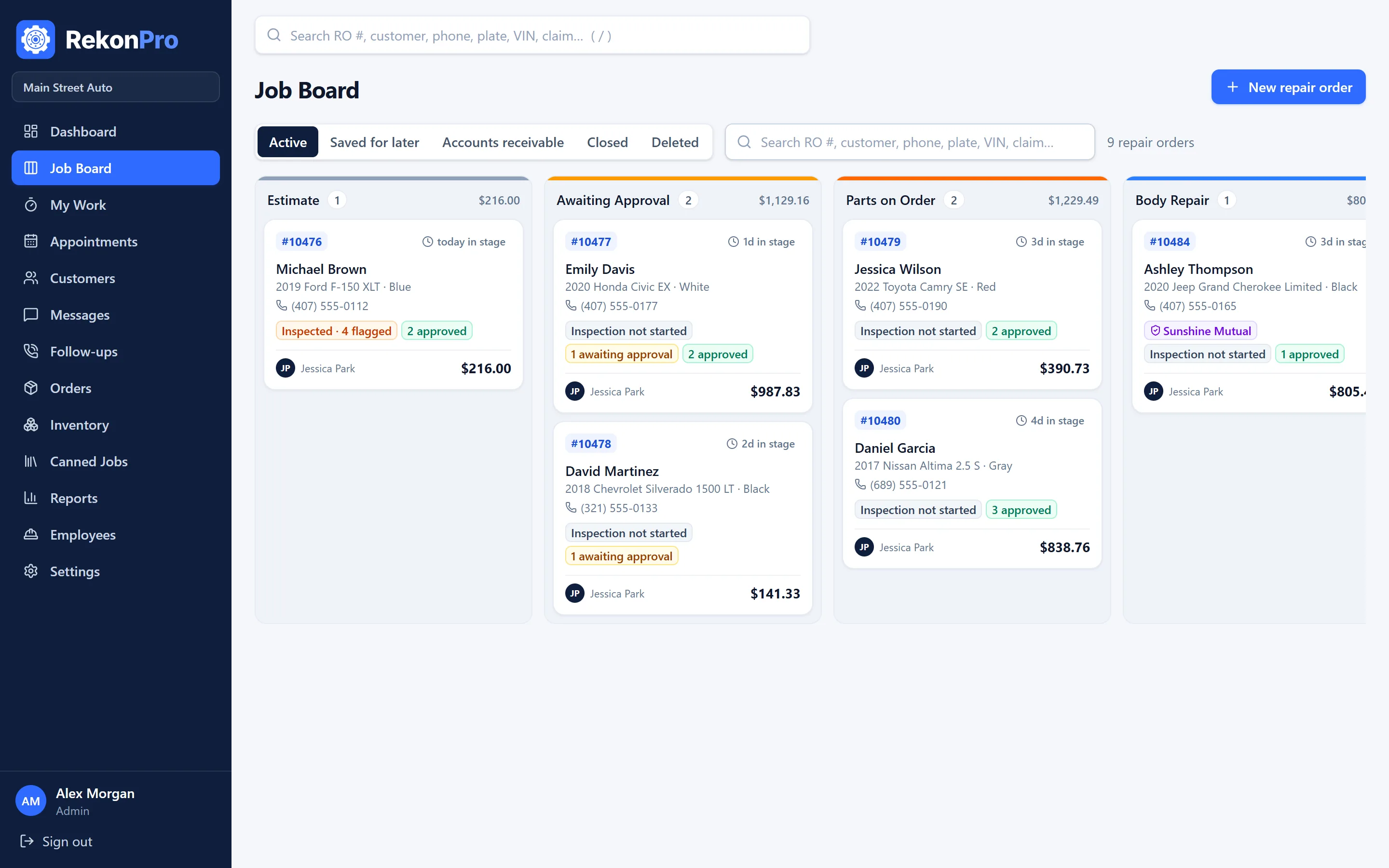
Click New repair order on the Dashboard or the Job Board.
Find the customer by name or phone, or add a new one. Pick the vehicle, or add it and click Decode VIN to fill in the year, make, model and engine.
Type the Odometer in and the Customer concerns, one per line.
Click Create repair order. It shows on the Job Board; move it through the columns as the work goes.
The customer concerns are copied into the vehicle inspection, so the technician answers each one.
Core, Growth, Complete
Build the estimate
An estimate is a list of jobs. Each job has its own labor, parts and fees, and the customer approves or declines each job.
Open the RO and go to the Estimate tab.
Type the job name, for example “Front brake pads and rotors”, and click Add job. You can also start from Open canned jobs, or from the Labor Guide with Search labor times.
In the job, add Labor lines (hours and rate), Parts lines (cost and price) and Fees, shop supplies & sublet.
Choose the technician on the job.
When the customer answers, click Approve or Decline on each job, or Approve all.
Use the bookmark button on any job to save it as a canned job and reuse it next time.
Core, Growth, Complete
Do a digital vehicle inspection
The technician checks the car on a phone or tablet, with photos, and the findings go straight into the estimate.
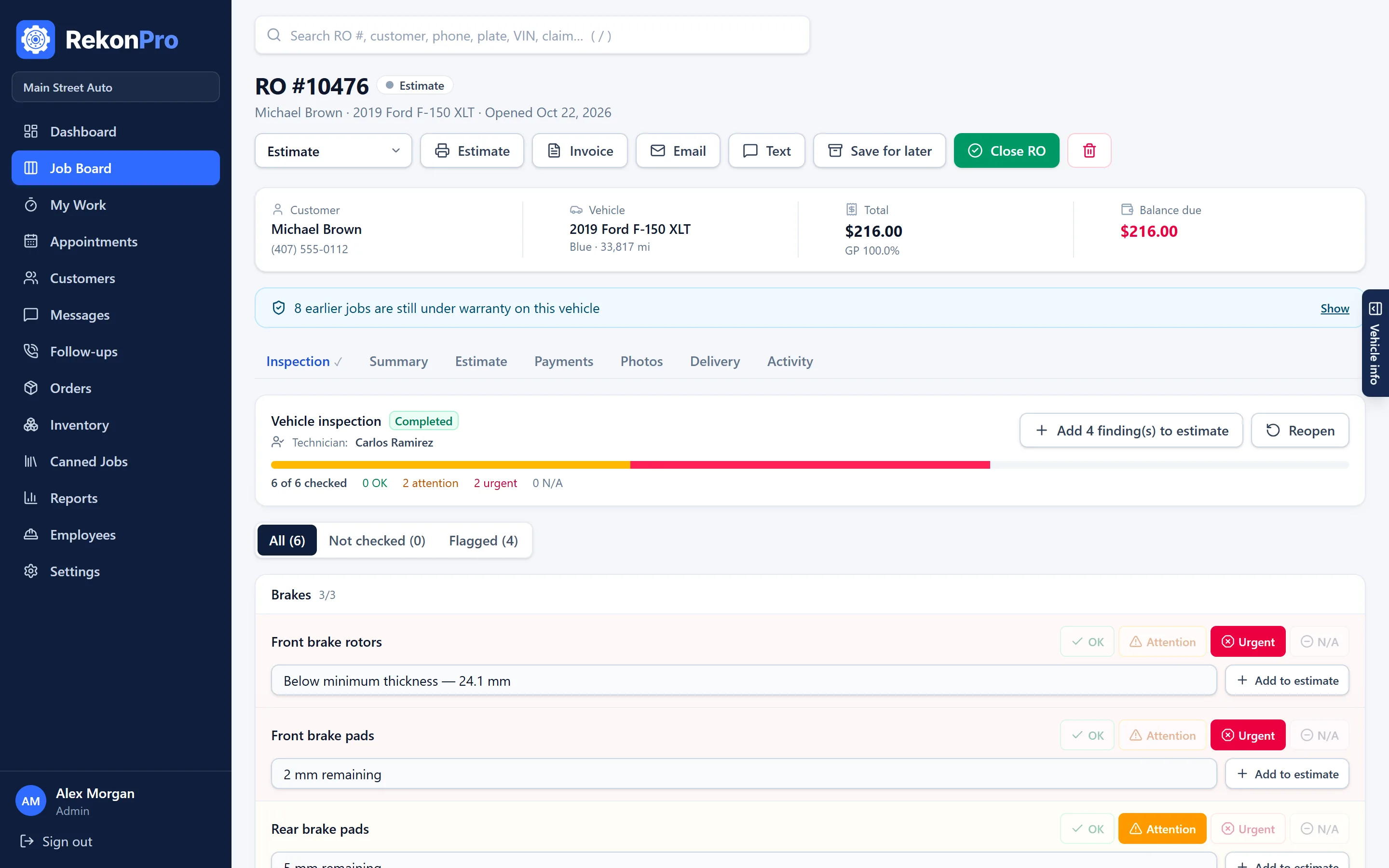
On the RO, open the Inspection tab and click Start inspection.
Mark each item OK, Attention or Urgent. Add notes and measurements, for example “pads 3 mm”, and take a Photo.
Use Mark rest OK to finish a section fast, and Add finding for anything that isn't on the list.
Click Complete inspection.
The service writer adds the flagged items to the estimate with Add to estimate.
Change the checklist your shop uses in Settings → Board & Inspection.
Growth, Complete
Get the customer's approval by text or email
The customer opens a link on the phone, sees the estimate and the inspection photos, chooses the jobs and signs.
Add the jobs to the estimate first.
On the Estimate tab, under Customer approval, click Create approval link.
Send it with Text (opens your phone's messages app) or Email, or click Copy and paste it anywhere. Preview shows what the customer sees.
When the customer signs, the approved and declined jobs are marked on the estimate, and the signature and authorized total show under Signed online.
If the total later goes above what the customer authorized, RekonPro shows a warning on the RO so you get a new approval before closing.
Core, Growth, Complete · Technicians
Technicians: My Work and the job clock
Technicians see only their own jobs, without prices, and clock their time on each one.
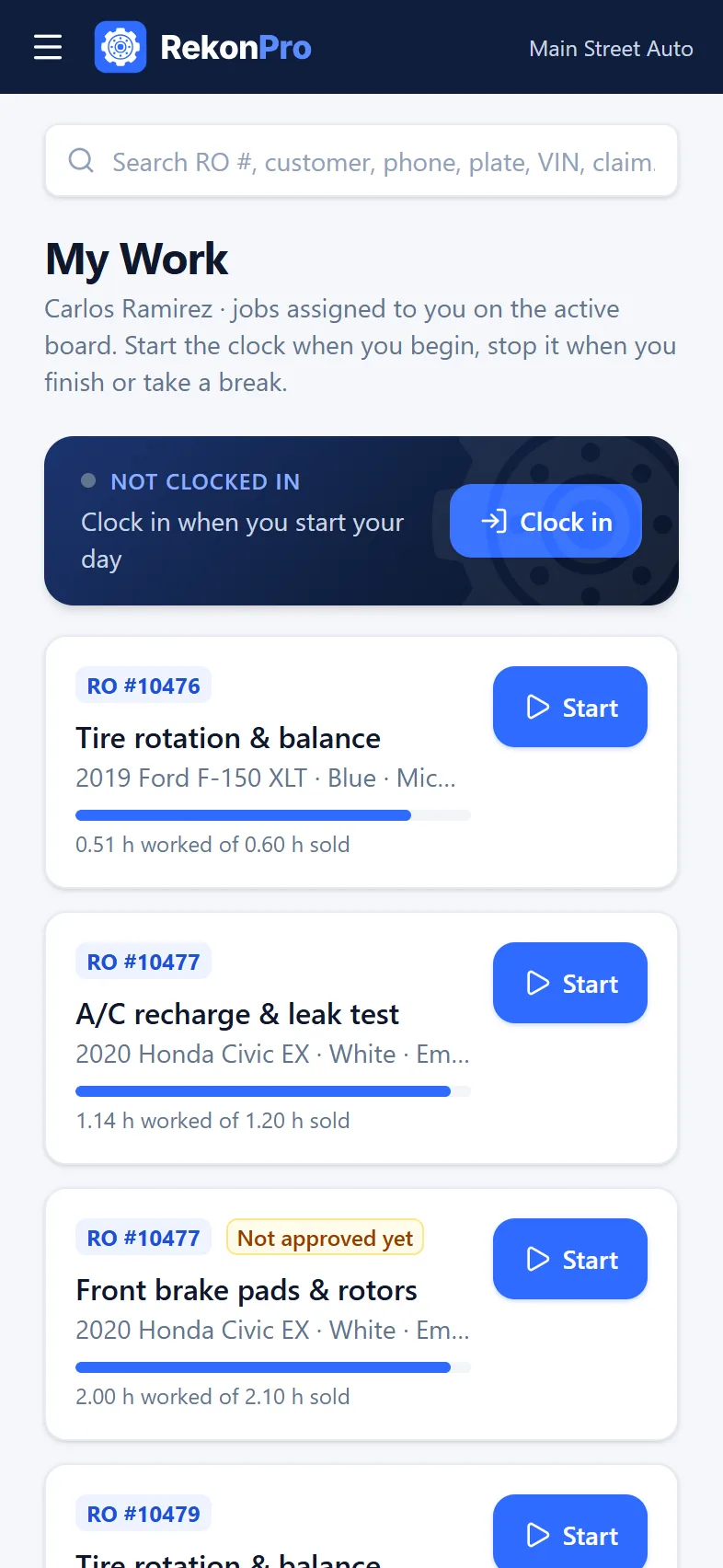
Sign in and open My Work. The jobs assigned to you on a repair order show up there.
Click Clock in when you start your day.
Click Start on the job you are working on and Stop when you pause or finish. Starting another job stops the one that is running.
Click Clock out at the end of the day. Any running job clock stops too.
A job marked Not approved yet is waiting for the customer's answer.
Core, Growth, Complete
Take payment, hand the car back and close
The last steps of a repair order, from the quality check to the closed invoice.
On the Delivery tab, mark each check item Pass or Fail and click Quality check passed.
In the Payments tab, under Record a payment, type the amount and choose the method. On Growth and Complete with Stripe connected, you can send a card payment link with Text-to-pay.
Print or email the invoice with the Invoice button at the top of the RO.
At pickup, type the name of the person picking up, have them sign and click Record pickup.
Click Close RO. If a balance is left, RekonPro asks first and the RO shows under receivables.
Closed by mistake? Click Reopen at the top of the RO.
RekonPro Lite
Lite
Create an invoice
One screen: the customer, the car and the lines. Works on a phone.
Go to Invoices and click New invoice.
Under Search a customer, type a name or phone. For someone new, click New customer and type the first name, last name and mobile phone.
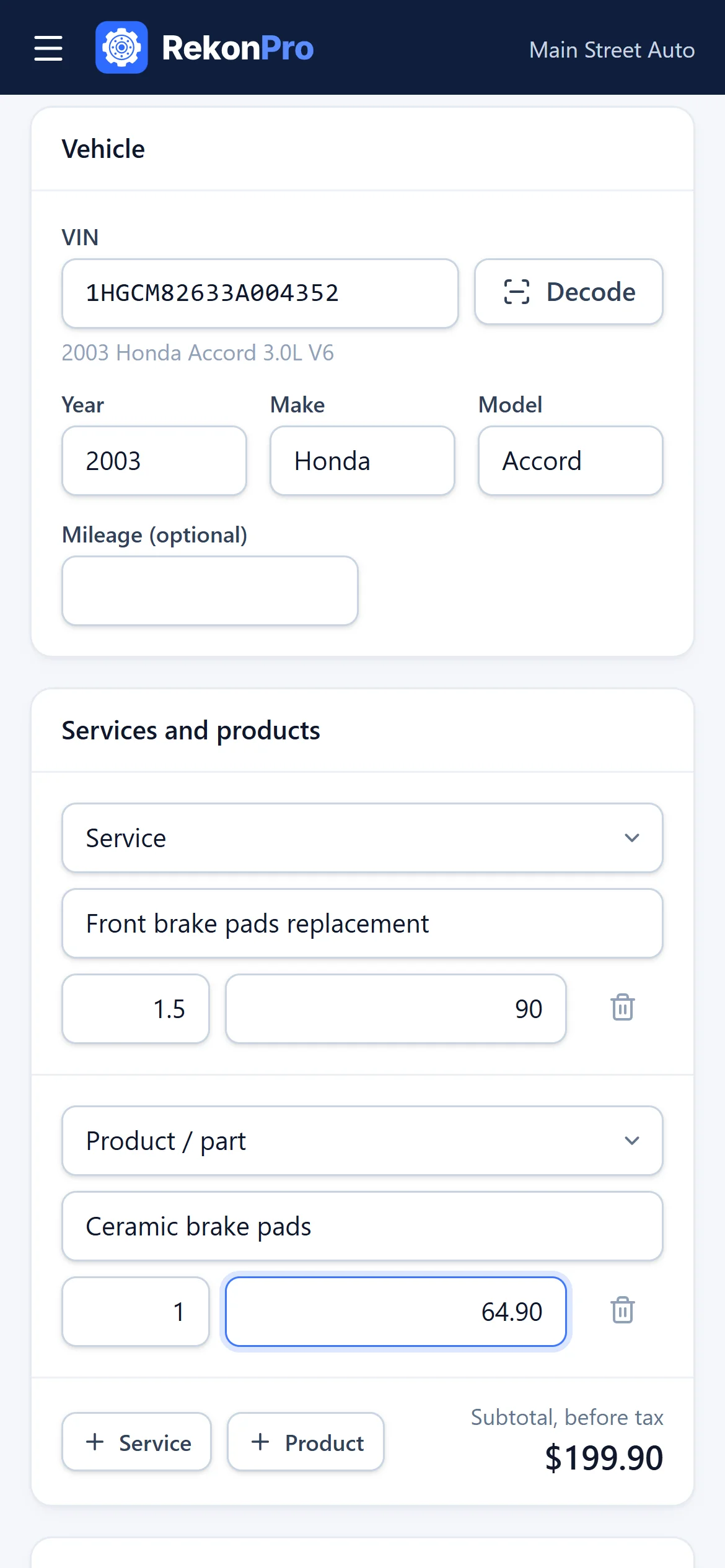
Type the 17-character VIN and click Decode to fill in the year, make and model. Mileage is optional.
Under Services and products, add each line: Service or Product, the description, the quantity or hours, and the price each.
Under Payment, pick how the customer paid, or leave Not paid yet. Then click Create invoice.
Sales tax is added the way you set it in Settings → Sales Tax.
Lite
Share, mark paid or edit an invoice
Find any invoice in Invoices by number, customer, phone or VIN.
Send / share PDF opens your phone's share menu, so you can send it by text, WhatsApp or email. On a computer it downloads the PDF.
Print opens a copy ready to print.
Mark as paid records the payment when the customer pays later.
Edit changes the lines and the mileage. The new total can't be lower than what was already paid.
Need repair orders, technicians and inspections? See your plan.
Account
Email: Core and up · Texting and cards: Growth, Complete · Admin
Connect texting, card payments and email
RekonPro uses your shop's own accounts: you pay the providers directly and card money goes straight to you.
Email: in Settings → Email, type your mailbox details so estimates, invoices and approval links go out from your shop's address.
Text messages (Twilio): two-way texting with customers. About 1¢ per text plus about $1.15 a month for the number.
Card payments by text (Stripe): customers pay by card or Apple / Google Pay on the phone. Stripe charges about 2.9% + 30¢ per payment, with no monthly fee.
Copy the keys from the provider's dashboard into the card in Settings → Integrations, then try it with Test connection or Send test text.
Keys are stored encrypted, and only an Admin can open these settings.
All plans
See or change your plan
Lite is for invoices only. Core adds repair orders, technicians and inspections; Growth adds texting, approvals and parts; Complete adds insurance work and profit reports.
Your plan shows in Settings → Shop Profile, under RekonPro plan. Click See plans to compare.
Click Switch to … on the plan you want. It opens an email to RekonPro, and we confirm the change by email.
Your data stays when you change plans. A page your plan doesn't include shows Not included in your plan with the plans that have it. See pricing.
All plans · Admin
Download your data or close your account
Your shop's records belong to you. Take them with you whenever you want.
Go to Settings → Shop Profile and scroll to Your data.
Click Customers, Vehicles, Repair orders and invoices or Labor, parts and fee lines. Each downloads a spreadsheet (CSV) that opens in Excel or Google Sheets.
Your plan, the next billing date and your payments are in Settings → Subscription. Change your card or download invoices with Card and invoices; if a payment fails, click Pay now. Change plan there too: a bigger plan starts now, a smaller one at your next renewal.
To cancel, go to Settings → Subscription and click Cancel subscription. Renewal stops right away; you keep full access until the last paid day, and payments already made aren't refunded.
Changed your mind? Click Keep my subscription in the same place, any time before the last paid day.
To have the shop's data deleted, click ask us to close the account and delete the shop's data under Your data.
After you cancel, we keep the data for 30 days so you can still download it, then delete it, backups included. See the privacy policy.